-
-
-
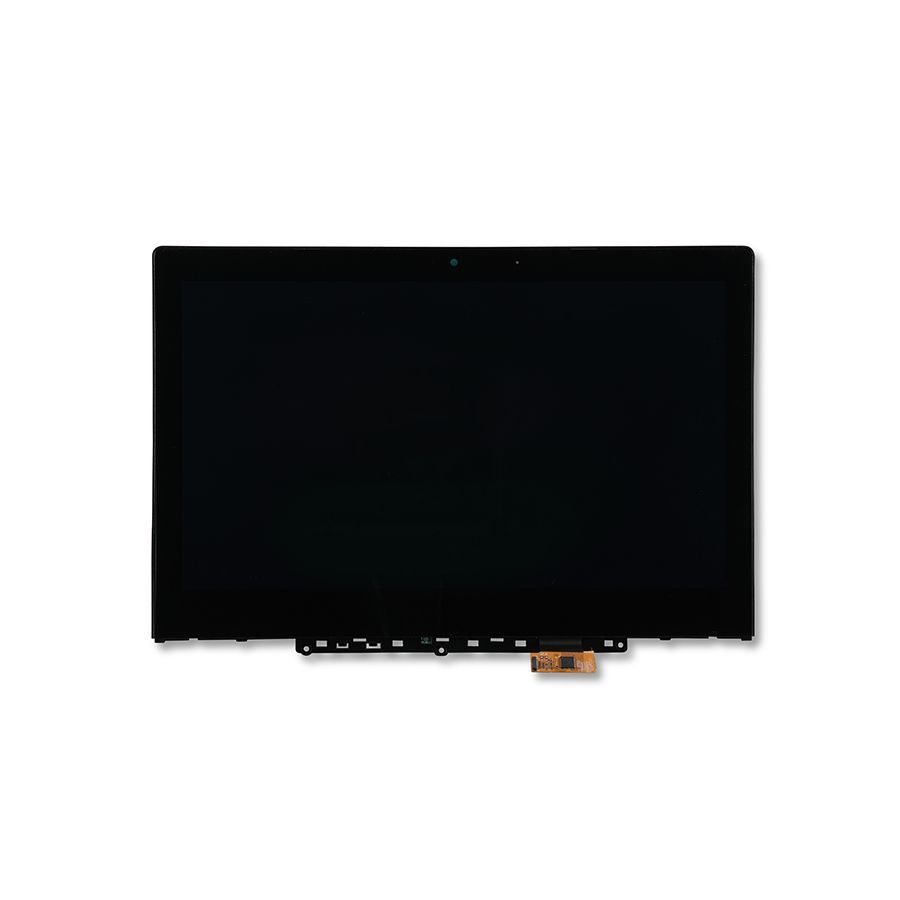
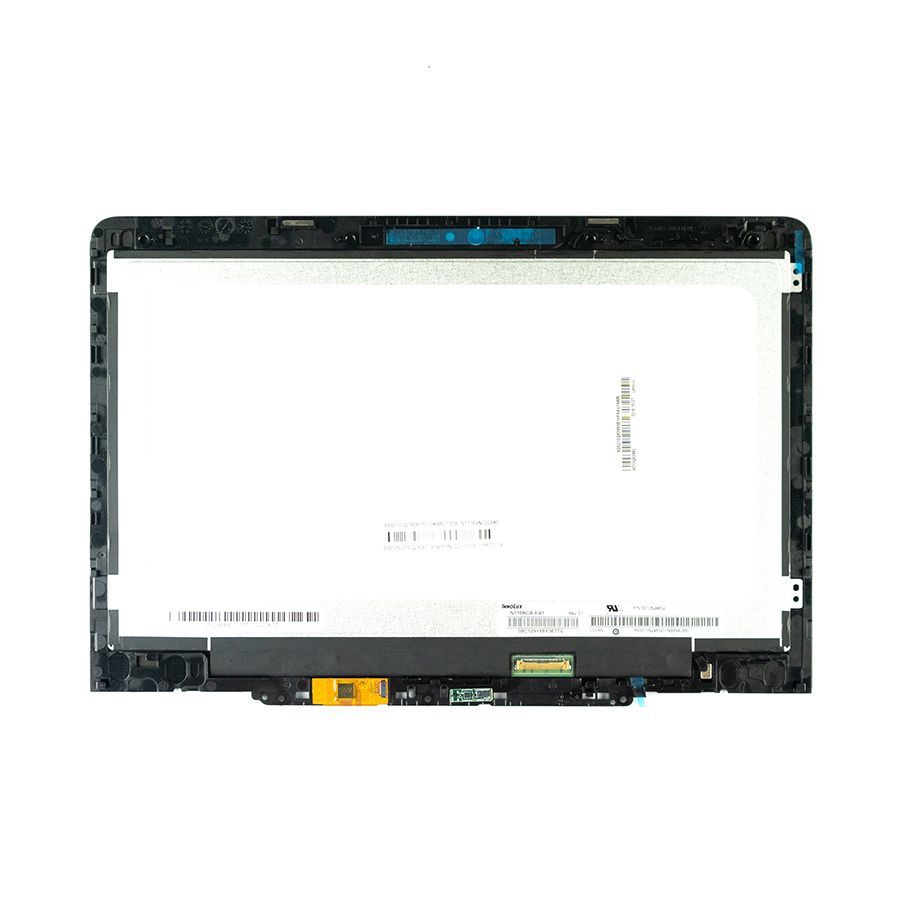
- LCD Touch Assembly for Dell Chromebook 5190 2-in-1 (Touch)
- LCD Touch Assembly for Dell Chromebook 13 7310 (Touch)
- LCD Touch Assembly for Dell Chromebook 13 3380 (Touch)
- LCD Touch Assembly for Dell Chromebook 11 5190 2-in-1 (Touch)
- LCD Touch Assembly for Dell Chromebook 11 3189 (Touch)
- LCD Touch Assembly for Dell Chromebook 11 3120 (Touch)
- LCD Touch Assembly for Dell Chromebook 5190 2-in-1 (Touch)
- LCD Touch Assembly for Dell Chromebook 13 7310 (Touch)
- LCD Touch Assembly for Dell Chromebook 13 3380 (Touch)
- LCD Touch Assembly for Dell Chromebook 11 5190 2-in-1 (Touch)
- LCD Touch Assembly for Dell Chromebook 11 3189 (Touch)
- LCD Touch Assembly for Dell Chromebook 11 3120 (Touch)

-
-

-

-

-


Unlocking the Mystery of Lenovo Chromebook LCDs: Common Queries Answered
Explore common questions about Lenovo Chromebook LCDs, their issues, and how to troubleshoot them effectively.
2025-09-07
Introduction
Let's face it, tech can sometimes feel like a foreign language. If you own a Lenovo Chromebook, you might have stumbled upon the term Lenovo Chromebook LCDs. But what does it really mean? And more importantly, why should you care? In this article, we'll demystify this topic and answer some of the most common questions that pop up when dealing with these displays.
What Are Lenovo Chromebook LCDs?
Essentially, LCD stands for Liquid Crystal Display. Now, Lenovo Chromebook LCDs are the screens that bring your device to life, providing you with visuals and making your browsing experience enjoyable. But, like any tech, they can run into issues. So, let's dig into some FAQs!
Why Is My Lenovo Chromebook LCD Flickering?
Ah, the dreaded flicker! It can be both annoying and confusing. Flickering screens can stem from a variety of issues – a loose connection, outdated drivers, or even a hardware malfunction. First things first, check your cable connections and ensure everything is snug as a bug. If that doesn't do the trick, consider updating your drivers. And if all else fails, it might be time to consult a professional.
Can I Replace My Lenovo Chromebook LCD Myself?
You bet! If you're feeling adventurous and have a bit of technical know-how, replacing your Lenovo Chromebook LCDs can be a DIY project. Just make sure you have the right tools and a replacement screen handy. There are plenty of tutorials online that can guide you through the process step-by-step. But remember, safety first! If you're unsure, it's always wise to call in the pros.
What Do I Do If My LCD Is Cracked?
Oh no! A cracked screen is every Chromebook user's nightmare. But don't panic just yet. Depending on the extent of the damage, you may be able to continue using your device, although it's not ideal. If the crack is severe, it's time to look into a replacement. You can either go the DIY route, as mentioned earlier, or seek help from a technician.
How Can I Improve My Lenovo Chromebook LCD Display Quality?
Want to elevate your viewing experience? Start by adjusting your brightness settings. Sometimes, all you need is a little tweak here and there. You might also want to check your display settings and ensure they're optimized for your needs. Lastly, keep your screen clean – a dirty LCD can significantly impact image quality!
What Should I Do If My LCD Doesn't Turn On?
When your Lenovo Chromebook LCD refuses to wake up, it can be downright frustrating. First, ensure your device is charged. If it's still not responding, try performing a hard reset. Just hold down the power button for about 10 seconds. If the problem persists, you might be dealing with a deeper issue that requires professional assistance.
Conclusion
In the world of Lenovo Chromebook LCDs, it's all about staying informed. From flickering screens to cracked displays, knowing how to troubleshoot common issues can save you time, money, and a whole lot of headaches. So next time your screen acts up, you'll know where to turn for answers. Happy browsing!
Related news