-
-
-
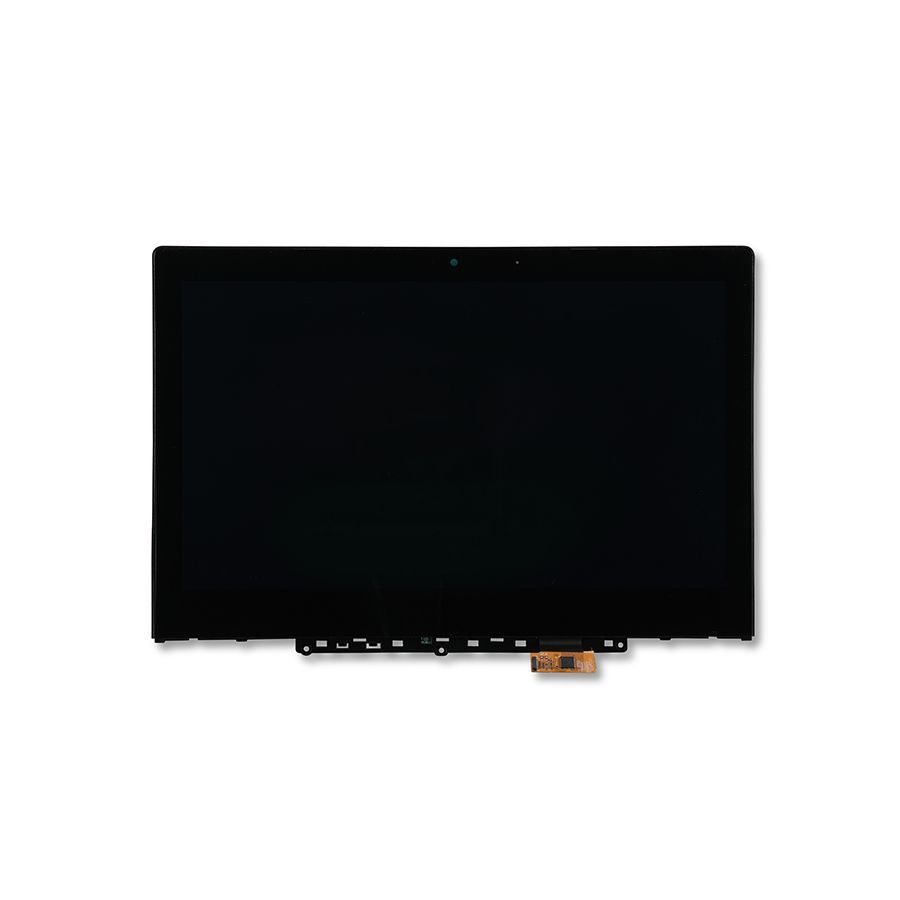
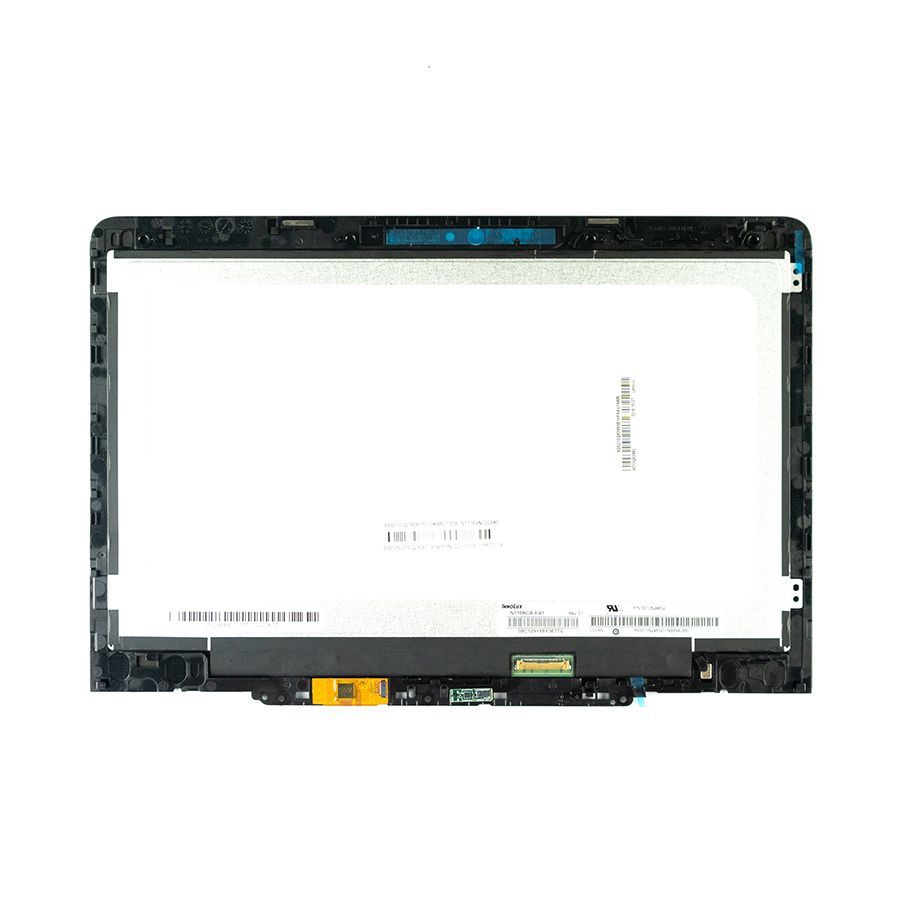
- LCD Touch Assembly for Dell Chromebook 5190 2-in-1 (Touch)
- LCD Touch Assembly for Dell Chromebook 13 7310 (Touch)
- LCD Touch Assembly for Dell Chromebook 13 3380 (Touch)
- LCD Touch Assembly for Dell Chromebook 11 5190 2-in-1 (Touch)
- LCD Touch Assembly for Dell Chromebook 11 3189 (Touch)
- LCD Touch Assembly for Dell Chromebook 11 3120 (Touch)
- LCD Touch Assembly for Dell Chromebook 5190 2-in-1 (Touch)
- LCD Touch Assembly for Dell Chromebook 13 7310 (Touch)
- LCD Touch Assembly for Dell Chromebook 13 3380 (Touch)
- LCD Touch Assembly for Dell Chromebook 11 5190 2-in-1 (Touch)
- LCD Touch Assembly for Dell Chromebook 11 3189 (Touch)
- LCD Touch Assembly for Dell Chromebook 11 3120 (Touch)

-
-

-

-

-


Understanding Lenovo Chromebook LCDs: A Guide for Tech Enthusiasts
Explore everything you need to know about Lenovo Chromebook LCDs, from features to troubleshooting tips.
2025-08-23
What Are Lenovo Chromebook LCDs?
So, you've jumped on the Chromebook bandwagon, huh? Great choice! Lenovo has made quite the name for itself in the Chromebook arena, and at the heart of these nifty devices are their LCD screens. But, what exactly are Lenovo Chromebook LCDs? Well, in the simplest terms, they are the displays that bring your digital world to life on your Lenovo Chromebook. These screens are designed to deliver sharp images, vibrant colors, and a smooth user experience. But there's more to it than just looks!
Why the LCD Matters
Picture this: you're scrolling through your favorite blog, and the text is crisp and clear, the images pop, and you can binge-watch the latest series without straining your eyes. That's the magic of quality LCDs! Lenovo Chromebook LCDs are engineered with technology that enhances viewing angles, reduces glare, and ensures that your visual experience is as immersive as possible. Talk about a win-win!
Types of LCDs in Lenovo Chromebooks
Not all LCDs are created equal. Lenovo offers a range of LCDs across its Chromebook lineup. Here are a few common types:
- IPS Displays: These In-Plane Switching panels are known for their superior color accuracy and wide viewing angles. Perfect for design work or sharing your screen with friends!
- Touchscreen LCDs: What's cooler than swiping and tapping your way through your tasks? Lenovo's touchscreen options provide a more interactive experience.
- FHD and HD Displays: Depending on your model, you can find Full HD (1920x1080) for a stunning visual experience or HD (1366x768) for basic needs. Choose what suits your style!
Troubleshooting Common LCD Issues
Ah, the dreaded LCD issues! We've all been there. Whether it's flickering, dead pixels, or a completely blank screen, it can be a real pain. But don't fret! Here are some tips to troubleshoot:
- Check Your Connections: Sometimes, it's just a loose cable. Make sure everything is plugged in correctly.
- Restart Your Chromebook: Yes, the classic "turn it off and on again" trick can work wonders!
- Screen Brightness: Ensure your brightness isn't set too low. You wouldn't want to strain your eyes!
- Software Update: Outdated software can cause display issues. Check for updates regularly!
- Consult the Pros: If all else fails, don't hesitate to reach out to Lenovo's customer support.
Upgrading Your LCD
Thinking about upgrading? You're not alone! Many users want to enhance their visual experience. While it's not as simple as swapping out a light bulb, it's doable for the DIY enthusiast. Just make sure you know the specific model of your Chromebook and the type of LCD it supports. There are plenty of guides and videos online to help you through the process!
Care Tips for Your Lenovo Chromebook LCD
To keep your LCD looking sharp for years to come, here are a few care tips:
- Use a microfiber cloth: Avoid scratches by cleaning with a soft cloth.
- Avoid eating and drinking: Keep crumbs and spills at bay!
- Be gentle: Don't press too hard on the screen – it's not a stress ball!
Final Thoughts
In conclusion, Lenovo Chromebook LCDs are more than just screens; they are windows into a world of creativity, productivity, and entertainment. Whether you're a student, a professional, or just someone who loves browsing the web, understanding your Chromebook's LCD can immensely enhance your experience. So, treat it well, and it will treat you back!
Related news