-
-
-
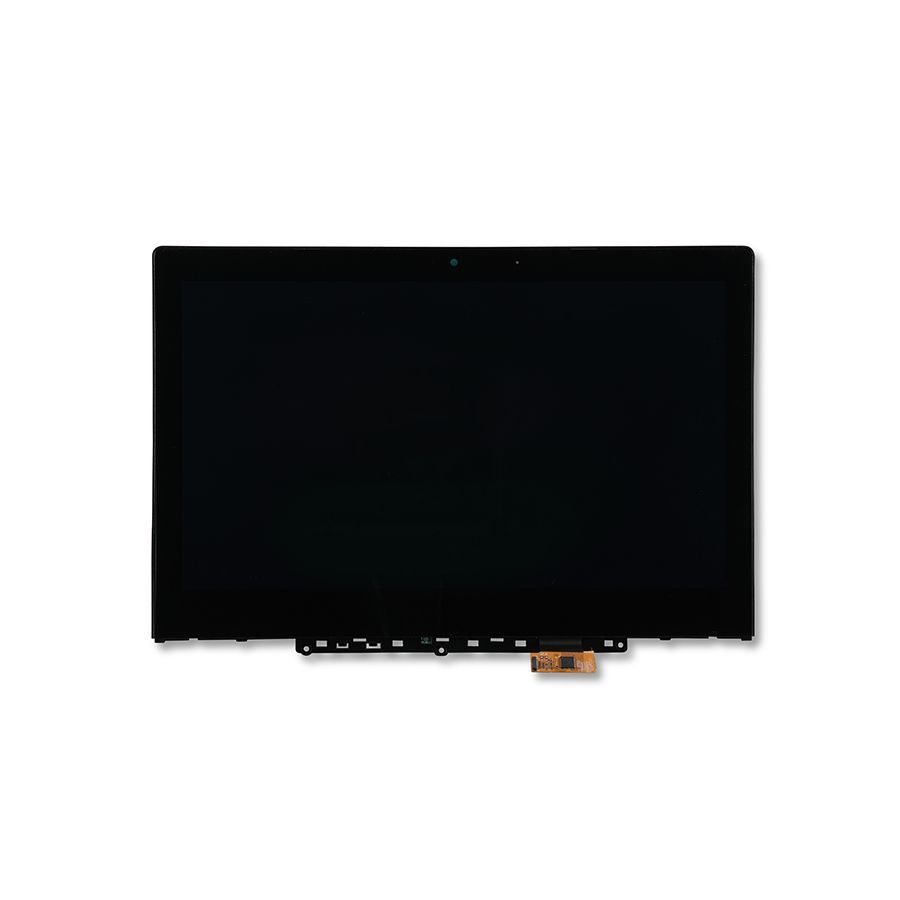
- LCD Touch Assembly for Dell Chromebook 5190 2-in-1 (Touch)
- LCD Touch Assembly for Dell Chromebook 13 7310 (Touch)
- LCD Touch Assembly for Dell Chromebook 13 3380 (Touch)
- LCD Touch Assembly for Dell Chromebook 11 5190 2-in-1 (Touch)
- LCD Touch Assembly for Dell Chromebook 11 3189 (Touch)
- LCD Touch Assembly for Dell Chromebook 11 3120 (Touch)
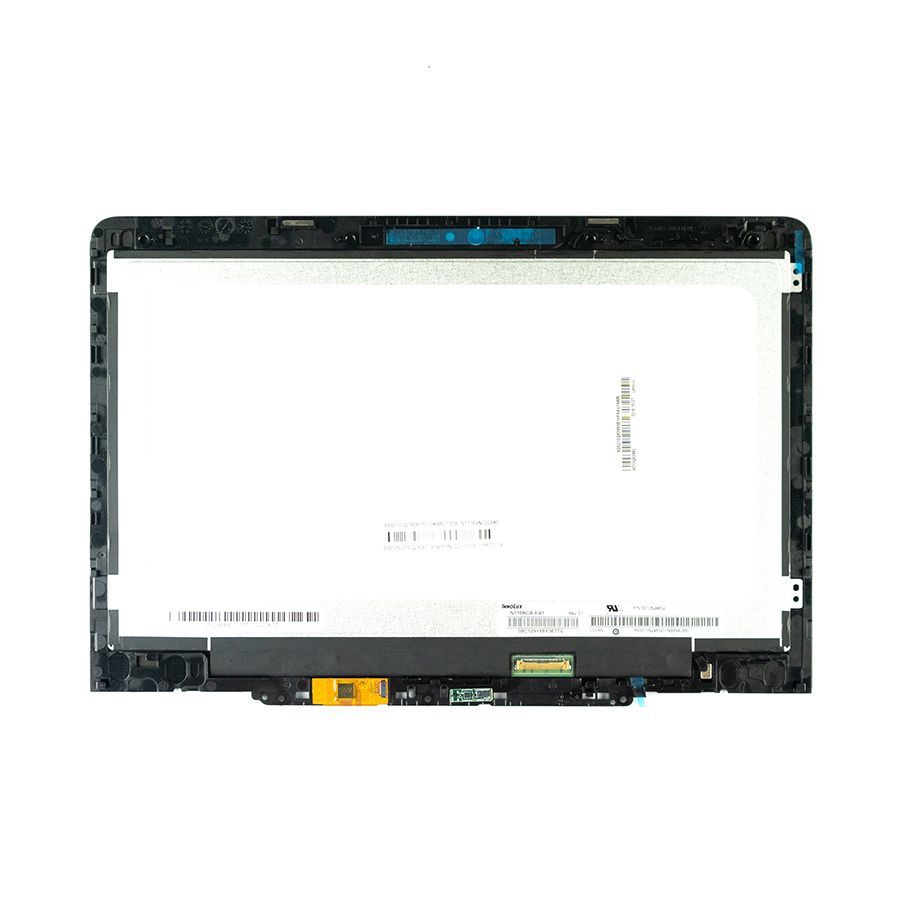
- LCD Touch Assembly for Dell Chromebook 5190 2-in-1 (Touch)
- LCD Touch Assembly for Dell Chromebook 13 7310 (Touch)
- LCD Touch Assembly for Dell Chromebook 13 3380 (Touch)
- LCD Touch Assembly for Dell Chromebook 11 5190 2-in-1 (Touch)
- LCD Touch Assembly for Dell Chromebook 11 3189 (Touch)
- LCD Touch Assembly for Dell Chromebook 11 3120 (Touch)

-
-

-

-

-


Maximizing Productivity with Lenovo 500e Chromebook: Essential Tips and Tricks for Enhanced Efficiency
Maximizing Productivity with the Lenovo 500e Chromebook: Tips and Tricks Table of Contents 1. Introduction to the Lenovo 500e Chromebook 2. Understanding Chromebooks and Their Benefits 3. Setting Up Your Lenovo 500e Chromebook for Success 4. Optimizing Performance for Maximum Efficiency 5. Essential Apps for Enhanced Productivity 6. Utilizing Google Tools to Streamline You
2024-08-12
Maximizing Productivity with the Lenovo 500e Chromebook: Tips and Tricks
Table of Contents
- 1. Introduction to the Lenovo 500e Chromebook
- 2. Understanding Chromebooks and Their Benefits
- 3. Setting Up Your Lenovo 500e Chromebook for Success
- 4. Optimizing Performance for Maximum Efficiency
- 5. Essential Apps for Enhanced Productivity
- 6. Utilizing Google Tools to Streamline Your Workflow
- 7. Customizing Settings for a Personalized Experience
- 8. Troubleshooting Tips for Common Issues
- 9. Frequently Asked Questions
- 10. Conclusion
1. Introduction to the Lenovo 500e Chromebook
The **Lenovo 500e Chromebook** is a versatile and robust device designed to meet the needs of both students and professionals. It features a durable design, a responsive touchscreen, and an intuitive interface, making it an excellent choice for those looking to enhance their productivity. In this guide, we will explore various tips and tricks that will help you fully utilize the capabilities of your Chromebook, ensuring you can work smarter, not harder.
2. Understanding Chromebooks and Their Benefits
Chromebooks run on the **Chrome OS**, a lightweight operating system developed by Google. Unlike traditional laptops, Chromebooks are designed primarily for internet-based tasks and rely heavily on cloud storage. Here are some benefits that make Chromebooks like the Lenovo 500e an attractive option:
2.1 Lightweight and Portable
The Lenovo 500e Chromebook is incredibly lightweight, making it easy to carry around. This portability is ideal for students who need to take their devices to class or professionals who work remotely.
2.2 Long Battery Life
With its energy-efficient design, the Chromebook boasts impressive battery life, allowing you to work for extended periods without worrying about finding a power outlet.
2.3 Seamless Google Integration
Chromebooks are built to work seamlessly with Google services such as Google Drive, Docs, and Sheets, enhancing collaboration and efficiency.
2.4 Automatic Updates and Security
Chromebooks offer automatic updates to keep your system secure and up-to-date, giving you peace of mind while working online.
3. Setting Up Your Lenovo 500e Chromebook for Success
The first step to maximizing productivity is setting up your Lenovo 500e Chromebook correctly. Here are critical steps to ensure a successful setup:
3.1 Create a Google Account
To access the full functionality of your Chromebook, you will need a Google account. This account will allow you to save your documents, settings, and preferences in the cloud.
3.2 Customize Your Desktop
Personalizing your desktop can enhance your working experience. Arrange your apps, add shortcuts to frequently used sites, and set a background that inspires you.
3.3 Enable Syncing
Use the syncing feature to keep your bookmarks, passwords, and settings consistent across different devices. This ensures a seamless transition whether you're using your Chromebook or another device.
4. Optimizing Performance for Maximum Efficiency
To ensure your Lenovo 500e Chromebook operates at peak performance, consider these optimization techniques:
4.1 Manage Background Apps
Limit the number of extensions and apps running in the background. This helps conserve resources and improves overall speed.
4.2 Regularly Clear Cache and Data
Clearing your browser cache and data periodically can help improve performance and speed up loading times for web pages.
4.3 Use Offline Mode
Utilize Google Docs and other applications in offline mode. This allows you to continue working even without an internet connection, syncing your changes once you're back online.
5. Essential Apps for Enhanced Productivity
The Lenovo 500e Chromebook can be equipped with various applications that cater to your productivity needs. Here are some essential apps to consider:
5.1 Google Workspace Apps
Apps like Google Docs, Sheets, and Slides are indispensable for document editing, spreadsheet management, and presentation creation.
5.2 Trello
Trello is a project management tool that helps you organize tasks, collaborate with team members, and track project progress in a visual format.
5.3 Zoom
For remote work and virtual meetings, Zoom provides a reliable platform for video conferencing, making it essential for professionals.
5.4 Evernote
Evernote is an excellent note-taking app that lets you capture ideas, organize important information, and access your notes from any device.
5.5 Slack
Slack is perfect for team communication, allowing for instant messaging, file sharing, and collaboration within groups.
6. Utilizing Google Tools to Streamline Your Workflow
Google offers a suite of tools that can significantly enhance your productivity with the Lenovo 500e Chromebook:
6.1 Google Calendar
Stay organized by using Google Calendar to manage your schedule, set reminders, and plan meetings effectively.
6.2 Google Keep
Google Keep is a simple note-taking and task management app that allows you to jot down ideas, create to-do lists, and set reminders.
6.3 Google Drive
Take advantage of Google Drive to store documents, photos, and files securely in the cloud, which also allows for easy sharing with others.
7. Customizing Settings for a Personalized Experience
Personalizing your Chromebook settings can increase comfort and productivity:
7.1 Adjust Display Settings
Fine-tune brightness, contrast, and screen resolution to suit your visual preferences, reducing eye strain during long work sessions.
7.2 Set Up Keyboard Shortcuts
Familiarize yourself with keyboard shortcuts for common tasks to speed up your workflow and navigate your device more efficiently.
7.3 Enable Accessibility Features
Explore accessibility options like screen magnifiers and high-contrast mode to create a more comfortable working environment.
8. Troubleshooting Tips for Common Issues
Even the best devices face issues from time to time. Here are some troubleshooting tips for common problems:
8.1 Internet Connectivity Problems
If you encounter issues with your Wi-Fi connection, try forgetting the network and reconnecting. Additionally, restarting your Chromebook can resolve many connectivity issues.
8.2 Slow Performance
If your Chromebook feels sluggish, check for unnecessary background apps or extensions that may be consuming system resources.
8.3 App Crashes
In case of app crashes, ensure that the application is updated and consider reinstalling it if the problem persists.
9. Frequently Asked Questions
9.1 Can I install Windows applications on my Lenovo 500e Chromebook?
While Chromebooks primarily run Chrome OS, you can use Linux apps and Android apps via the Google Play Store, but traditional Windows applications are not directly compatible.
9.2 How do I take a screenshot on a Lenovo Chromebook?
To take a screenshot, press the **Ctrl + Show Windows** keys simultaneously. To capture just a portion of the screen, press **Ctrl + Shift + Show Windows**.
9.3 What should I do if my Chromebook won't turn on?
Ensure the device is charged. If it still doesn’t power up, try performing a hard reset by holding down the refresh and power buttons simultaneously.
9.4 Is it possible to use my Chromebook offline?
Yes, you can use certain applications like Google Docs and Sheets offline. Just make sure to enable offline access beforehand.
9.5 How do I increase storage on my Chromebook?
You can expand your storage by utilizing external USB drives or using cloud services like Google Drive for additional storage capacity.
10. Conclusion
Maximizing productivity with the Lenovo 500e Chromebook is achievable through effective setup, optimization, and utilization of available tools and apps. By following the tips and tricks outlined in this guide, you can elevate your efficiency and make the most out of your Chromebook experience. Whether for school or work, embracing these strategies will help you stay organized, focused, and productive.
Related news